
[HPC 101] First Steps to HPC: SSH, Modules, and Slurm
Published:
Welcome to the HPC 101 series!
This guide covers the essential knowledge of High-Performance Computing (HPC). If you are new to HPC, don’t worry. We’ll walk through basics step-by-step, from logging in to submitting your first job.
Table of Contents
- 1. What is HPC?
- 2. How to SSH into an HPC Cluster
- 3. How to use Modules
- 4. Submit Your First Job with Slurm
> 1. What is HPC?
High-Performance Computing (HPC) utilizes supercomputers or computer clusters to solve complex computational problems. While a standard workstation can handle everyday tasks, HPC is designed for massive scale, widely used in fields ranging from engineering and science to finance and psychology. It is a rapidly growing technology, especially in the age of AI and Machine Learning.
Research institutes and companies around the world use HPC to develop new products or run intensive simulations. One of the world’s fastest HPC systems, El Capitan, is hosted by Lawrence Livermore National Laboratory. (Reference).

Why do we use HPC?
HPC is a powerful tool that allows researchers and engineers to solve problems demanding high computational performance which cannot be handled by normal desktop PCs. Here are some example cases,
- AI/ML: Training large models using multiple GPUs
- Pharmaceutics: Simulating molecular dynamics to develop new medicines
- Physics/Chemistry: Running quantum chemistry or simulating protein folding
- Meteorology: Processing large data for accurate weather forecasting
> 2. How to SSH into an HPC Cluster
Before we compute, we need to connect to the cluster. Watch the tutorial video below or follow the text guide below.
(Click the image to watch the tutorial on YouTube)
What is SSH?
SSH (Secure Shell) is a network protocol that enables secure connections between computers. It is used for remote access, command execution, and file transfers. Don’t worry if these terms sound too technical. Simply, think of it as a secure tunnel connecting your PC to the HPC cluster.
Let’s connect!
- Open a terminal window.
-
Type the following command:
$ ssh <YOUR_ID>@<CLUSTER_HOST_NAME>
# Example: $ ssh [email protected]
(Note: The
$sign indicates the command-line prompt. Do not type it.) -
Security Prompt: If this is your first time connecting, you will see a message asking: “Are you sure you want to continue connecting?” Type
yesand press Enter. - Enter Password:
Type your user password.
Note: You will NOT see asterisks (
****) or a cursor moving. This is a standard security feature in Linux. Just type your password and press Enter.
-
Success:
If you see a screen similar to the one below, you have successfully logged in![user123@login-node-01 ~]$
> 3. How to use Modules
On HPC, you can’t simply install software with sudo apt-get or sudo dnf. Instead, we use the Module System.
(Click the image to watch the tutorial on YouTube)
What is the Module System?
Most HPC clusters manage software using a module system like Environment Modules or Lmod. Unlike your personal computer where you can install software on system, HPC clusters use modules to:
- No Conflicts: Different users can use different software versions simultaneously
- Reproducibility: You can keep your environment consistent for your research
- Auto-loading: When you load a module (e.g., OpenMPI), it automatically loads necessary dependencies (e.g., GCC compilers)
Essential Commands
Here is a cheat sheet for module commands:
# View list of ALL available modules on the system
$ module avail

# Load a specific module
$ module load <NAME>/<VERSION>
# Example: module load openmpi/4.1.8

# View list of CURRENTLY loaded modules
$ module list

# Unload a module
$ module unload <NAME>

# Unload ALL modules
$ module purge
Recommended Practices
- Avoid
.bashrc: Do not putmodule loadcommands in your.bashrcfile. This could cause conflicts and login issues.- Check availability first: Use
module availto see the exact name and version.- Be specific: Always specify the version number (e.g.,
module load openmpi/4.1.8). If not specified, the default version is loaded, which might be changed.
> 4. Submit Your First Job with Slurm
Now, you’re ready to submit a job.
(Click the image to watch the tutorial on YouTube)
What is a Job Scheduler?
In an HPC environment, you do not run heavy calculations directly on the Login Node. Instead, you submit a “job” to a Scheduler like Slurm, PBS, SGE, or LSF. The scheduler manages resources and assigns your job to available Compute Nodes.
Note: This tutorial primarily focuses on Slurm, one of the most widely used schedulers in modern HPC systems. PBS/Torque examples are provided for reference, but commands and options may vary. Always check your cluster’s documentation for scheduler-specific syntax.
- Interactive Jobs: Useful for development, debugging, or tasks requiring a GUI. You get a shell on a compute node.
- Batch Jobs: Useful for long running tasks. You submit a script, and the system runs it when resources are available.
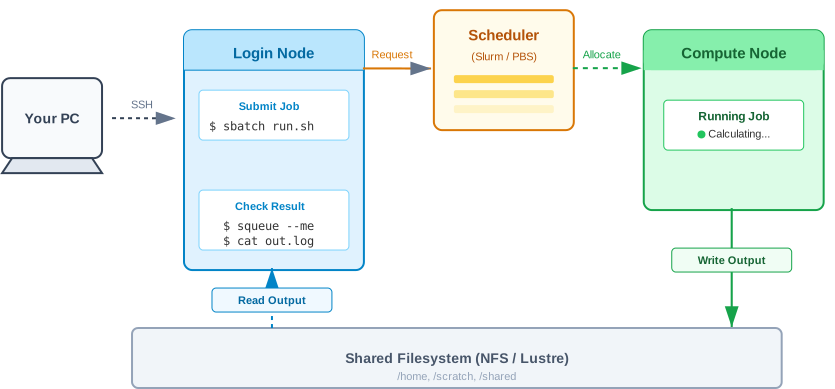
The “Hotel” Analogy
Sometimes beginners make a mistake of running heavy tasks directly after logging in. Please don’t do that.
Think of the HPC cluster as a Hotel.
- Login Node = Hotel Lobby: This is where you check in. It’s a shared space. You wouldn’t set up a tent and sleep in the lobby, right?
- Compute Node = Guest Room: This is your private room where you can actually work (sleep).
- Scheduler = Receptionist: You ask the receptionist (Scheduler) for a room (Resources), and they assign you one.
We use a job scheduler like Slurm to ask for resources.
Let’s submit an Interactive Job
Use this when you need to test or debug code in real-time.
-
Request a session (get a room):
[user123@login-node-01]$ srun --pty bash srun: job 12345 queued and waiting for resources srun: job 12345 has been allocated resources [user123@compute-node-01]$ # Note: your cluster may require specifying partition: # $ srun -p interactive --pty bash- Your hostname will change from
login-node-01tocompute-node-01. You are now in your “Guest Room”.
- Your hostname will change from
-
When you are done, type
exitto return to the login node (lobby):[user123@compute-node-01 ~]$ exit [user123@login-node-01 ~]$
Let’s submit a Batch Job
This is for long-running simulations. You write a “batch script” (reservation request) and submit it.
-
Create a script (e.g.,
job_script.sh) using a text editor likevimornano.#!/bin/bash # Tells the system that this is a Bash script #SBATCH --account=myAcct # Account name #SBATCH --partition=myPart # Partition name #SBATCH --job-name=first_job # Job name #SBATCH --output=result.out # Standard output log #SBATCH --error=result.err # Standard error log #SBATCH --nodes=1 # Number of nodes #SBATCH --ntasks=1 # Number of tasks (processes) #SBATCH --time=00:10:00 # Time limit (HH:MM:SS) #SBATCH --mem-per-cpu=4G # Memory per cpu # Load necessary modules module load python/3.12.12 # Run your command echo "Hello, HPC World!" python3 --version#!/bin/bash # Tells the system that this is a Bash script #PBS -A myAcct # Account name #PBS -q myQueue # Queue name #PBS -N first_job # Job name #PBS -o result.out # Standard output log #PBS -e result.err # Standard error log #PBS -l nodes=1:ppn=1 # Number of nodes and processors per node #PBS -l walltime=00:10:00 # Time limit (HH:MM:SS) #PBS -l pmem=4gb # Memory per cpu # Load necessary modules module load python/3.12.12 # Change to submission directory cd $PBS_O_WORKDIR # Run your command echo "Hello, HPC World!" python3 --version- Notes:
- Make sure to modify the script to meet your requirements
(Important: Replace “myAcct” and “myPart” with your actual account and partition names provided by your system administrator.) - #SBATCH: Slurm directives readable to Slurm scheduler
(#SBATCH is one word not “# SBATCH”) - Actual tasks located under Slurm directives
- Your job will get terminated once your tasks are done
(in case you submitted a longer time than required)
- Make sure to modify the script to meet your requirements
- Notes:
- Submit the job:
$ sbatch job_script.sh
Submitted batch job 12345
$ qsub job_script.sh 12345.headnode(Remember this Job ID (12345) and reference this number in your ticket!)
- Check the status:
$ squeue --me
JOBID   PARTITION   NAME        USER      ST  TIME  NODES   NODELIST(REASON)
12345   myPart      first_job   user123   R   0:02  1       compute-01
$ qstat -u user123 Job ID Name User Time Use S Queue -------- -------- -------- -------- - ----- 12345 first_job user123 0:02 R myQueue-
Job Status Columns (Slurm):
Column Description JOBID Your Job’s assigned ID PARTITION Partition name NAME Job name USER User name ST Job status: R=Running, PD=Pending, F=Failed, S=Suspended, CG=Completing TIME Time elapsed since job started NODES Number of requested nodes -
In case you want to cancel the job, use
scancel <JOBID>orqdel <JOBID>$ scancel 12345$ qdel 12345
-
-
View results: Once the job finishes (or disappears from
squeue), check the output file:# Success log $ cat result.out Hello, HPC World! Python 3.12.12 # Error log (If something went wrong) $ cat result.err
Summary
- SSH: The secure tunnel to enter the cluster
- Modules: Load software
- Login Node (Lobby): Only for checking in
- Compute Node (Room): The actual place to run your work, assigned by the Scheduler
- Job Submission: Use sbatch for batch scripts and srun for interactive job
Congratulations! You have successfully logged in, set up your environment, and run your first job. In the next post, we will move our bags (Data) to this new hotel room.
Need Help?
- Check your cluster’s documentation for specific Slurm configurations
- Use
man sbatchto see all available options - Most clusters have a
helpchannel or support email
Happy Computing!