[Linux 101] The Terminal: Don’t Be Afraid of the Dark
Published:
Let’s turn that scary black screen into a hacker’s playground.
Linux beginners usually consider the black terminal screen as a scary tool that might explode if they touch a wrong key. You don’t want to accidentally press a button that blows up your “home” directory. But once you get used to it, this screen makes you look like a cool hacker.
By the end of this post, you’ll be able to move around the Linux terminal, manage files, and edit text without panic.
Table of Contents
- 1. The Dark House
- 2. Navigating Your Home
- 3. Magic Spells: File Operations
- 4. X-Ray Vision (Checking Files)
- 5. Write It Down (Editors)
- 6. Secret Tips
(Click the image to watch the tutorial on YouTube)
> 1. The Dark House
Navigating the CLI (Command Line Interface) is like waking up in the middle of the night.
If someone takes your pretty looking GUI (Graphical User Interface) away and throws you into a CLI screen, it might feel like a power outage.
Imagine you took a nap on a couch and woke up at 3 AM. It is pitch black and you know how to get to your bed, but you can’t see anything on the way.
Using a terminal is exactly the same. You need to verify where you are and what is around you before you take a step. If you know exactly where to go, you can walk straight to your room. But you should always be careful not to trip.
> 2. Navigating Your Home
Okay, it’s 3 AM, the lights are out, and you don’t have a flashlight. You want to go to your bed.
First, you need to locate yourself. This is what pwd (Print Working Directory) does. It tells you exactly where you are standing.
$ pwd
/home/my_family/first_floor
Before you move, you want to know what’s around you so you don’t have to kick the table. The ls (List) command is your hands feeling the surroundings. You can add options to see hidden items or extra details.
$ ls
couch kitchen lamp restroom staircase trash_bin TV

$ ls -a
couch kitchen lamp .phone .remote restroom TV user123_room
# Now you found a phone and a remote hidden under the couch!
# (Files starting with '.' are hidden in Linux)

$ ls -l
total 32
-rwxr-xr-x. 1 family  family   4096 Dec 27 20:22 couch
drwxr--r--. 1 family  family   4096 Dec  6 20:02 kitchen
-rwxr--r--. 1 family  family  10517 Dec 26 18:51 lamp
drwxr-xr-x. 1 family  family   4096 Dec 26 17:49 restroom
-rwxr-xr-x. 1 parents family    840 Dec 26 18:03 TV
-rwxr-xr-x. 1 family  family    840 Dec 26 18:03 trash_bin
drwxr-xr-x. 1 user123 family   4096 Dec 26 18:03 user123_room
# You can see full details about each item or room
# You won't see hidden items here
Note: You can combine -a and -l as -la to see full details of all items
The detailed view (-l) shows some cryptic codes. Don’t worry about it though it looks like secret codes, but we can decode them.
-rwxrw-r-- 1 user group 46 Feb 14 16:37 File.txt
^ ^        ^ ^    ^     ^  ^            ^
| |        | |    |     |  |            |
1 2        3 4    5     6  7            8
- File Type:
-(File) ord(Directory) - Permissions:
rwxrw-r--(Who can do what) - Owner & Group: Who owns this item
- Size & Time: How big and when it was last touched
Let’s take a closer look at the first part. It defines who is allowed to enter the room or touch the item.
Type   Owner   Group   Others
[-]    [rwx]   [rw-]   [r--]
 |       |       |       |
File   Read    Read    Read
       Write   Write
       Exec
If you see rwx, it means the owner has a full power (Read, Write, and Execute).
Now, we learned how to read a map, so let’s start moving.
Let’s go to the restroom first. Since you can see it in your list, you can walk straight in. Use the cd (Change Directory) command.
$ cd restroom

$ pwd
/home/my_family/first_floor/restroom

$ ls
bath_tub body_wash hand_soap shampoo shower sink toilet towel
You finished your business and want to go to your bedroom (user123_room). But wait, ls shows no room here! You have two options:
- Step out to the hall, check locations, and then enter your room.
$ cd .. $ cd user123_room - Go out and immediately enter your room in one go.
$ cd ../user123_room
What is “..”?
In Linux, a single dot . represents Here (Current location), and double dots .. represent Parent location (One level up).
(Unfortunately, it stops at 2 dots. There is no “...” or “....”)
Relative vs. Absolute Path
Using dots (. or ..) works within your house or close to your current position. But what if you are at a friend’s house or far way from your room? You can get out of your friend’s restroom (..), but you won’t find your room (user123_room) there.
In that case, you need an Absolute Path (Full address).
# Relative path (Works only if you are in the hallway)
$ cd user123_room

# Absolute path (Works from anywhere in the universe)
$ cd /home/my_family/user123_room
> 3. Magic Spells: File Operations
Now, we need some more imagination. You are not just a person in the dark but you are a Wizard. Your magic wand can create rooms and items, or make trash disappear.
Creation (mkdir, touch)
First, let’s create an empty room. The spell is mkdir (Make Directory).
$ mkdir new_room
If you want to create an item (an empty file), use touch.
$ touch magic_scroll.txt
Teleportation (mv)
You want to move a TV from the living room to your new room. Cast mv (Move).
$ mv /home/my_family/first_floor/TV /home/my_family/first_floor/new_room/
Note: In Linux, renaming is just moving a file to the same place with a new name.
$ mv old_name.txt new_name.txt
Cloning (cp)
If you take the TV, your dad will be sad. Let’s create a clone of it using cp (Copy).
# Copy TV to the parent directory
$ cp ./TV ../
Now everyone is happy!
Destruction (rm)
Your mom asked you to take out the trash. With your magic power, you can simply incinerate it. Use rm (Remove).
$ rm ./trash_bin
Tip: When using
rm, prefer relative paths so you clearly see what you’re deleting.
Warning: Unlike Windows/Mac, Linux rm won’t keep trash (files) in a ** Recycle Bin.**
When you rm a file, it’s gone forever. It is incinerated. So, please be careful when you cast this spell.
> 4. X-Ray Vision (Checking Files)
While you were out, your parents left a note on the table.
Hey, we are leaving to pick up your cousin from the airport.
Please clean up the kitchen.
Don’t watch TV all evening.
… (100 lines more) …
Make sure to finish your homework before we are back.
Call if you want us to pick up anything for dinner.
How do you read this?
cat: Opens entire note at onceless: Opens content in a text viewer and lets you scroll up and downhead: Peeks at the top few linestail: Peeks at the bottom few lines
My Suggestion:
| Command | Use Case |
|---|---|
cat |
Short file (Fits in one screen) |
less |
Long file (Log files or code) |
head |
Just checking the beginning |
tail |
Checking the latest update (End of logs) |
Note: less is a contents viewer. You can press q to close it. ESC won’t close the viewer
# Read the first 2 lines
$ head -2 note.txt
Hey, we are leaving to pick up your cousin from the airport.
You have a few things to do once you are back.

# Read the last 2 lines
$ tail -2 note.txt
Make sure to finish your homework before we are back.
Call if you want us to pick up anything for dinner.
> 5. Write It Down (Editors)
You want to write a reply. On the terminal, you can’t open Microsoft Word. You need terminal editors like nano or vim.
And… Let’s not talk about emacs now. I’m sorry if you are an emacs fan.
Option 1: Nano (The Notepad)
If you want a simple sticky note and a pen, use nano. It’s very beginner friendly.
$ nano reply.txt
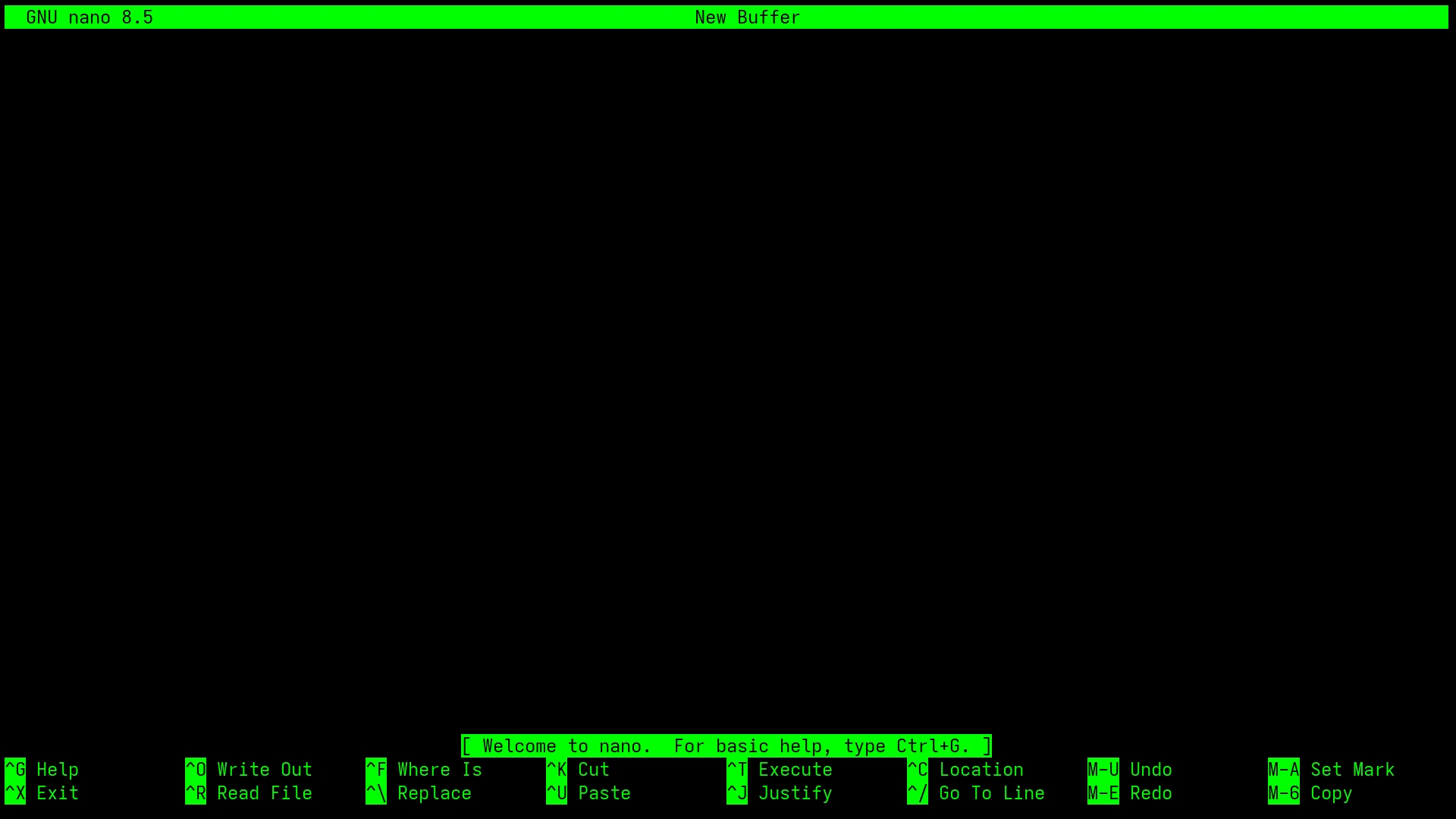
You can simply type whatever you want. The short cuts are at the bottom.
^means Ctrl key.- To Save: Press
Ctrl + O(Write Out), then Enter. - To Exit: Press
Ctrl + X.
Option 2: Vim (The Pro Tool) It is a powerful tool but a bit more tricky. The most important concept is Modes.
- Normal Mode: You cannot type text. You can view contents or give commands.
- Insert Mode: You can actually type and edit.
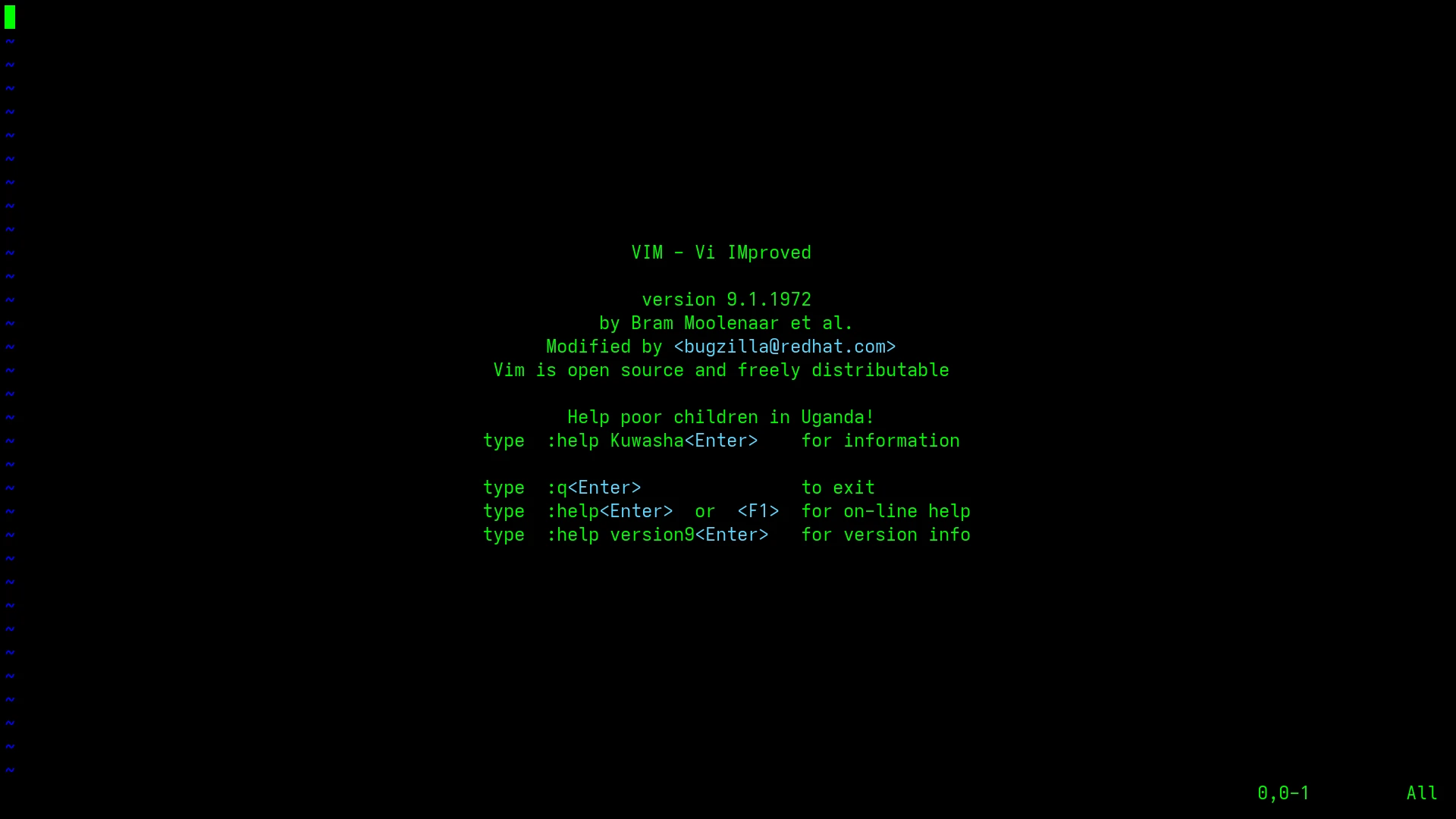
How to survive inside Vim:
- Type
vim reply.txt. - Press
ito start typing (Insert Mode). - When done, press
Esc(to exit Insert Mode). - Type
:wqand Enter (Write and Quit). - If you are stuck and panic? Press
Escand type:q!(Force Quit without saving).
> 6. Secret Tips
Let’s keep these tips between us.
1. Tab Autocomplete (Magic Key) Don’t type long filenames manually. Just type the first few letters and hit TAB key.
$ cd /home/my_family/first_f [TAB]
# Becomes:
$ cd /home/my_family/first_floor/
2. History (Arrow Keys) Have you used the command before? Don’t retype the whole command. Just browse previously used commands with the Up/Down Arrow key and run it.
3. The Abort Button (Ctrl+C) Stuck in a running program? Or typed a wrong command that you want to cancel? Press Ctrl + C.
[user@linux]$ i_wrote_a_very_long_random_command [Ctrl+C]
[user@linux]$ i_wrote_a_very_long_random_command^C
[user@linux]$ (Canceled!)
4. The Clean Slate (clear)
Is your screen too messy? Type clear. It wipes out the screen.
The Forbidden Spell One last warning. Don’t ever run this:
$ rm -rf /
This is the Nuke Button for your Linux world. It tries to delete everything from the root directory. Once launched, there is no going back.
Summary
- Navigate:
pwd(Where am I?),ls(What’s around here?),cd(Enter/Change location). - Manage:
mkdir(Create directory),touch(Create file),cp(Copy),mv(Move/Rename),rm(Destroy). - View:
cat(Short),less(Long),head/tail(Top/Bottom). - Edit:
nano(Simple),vim(Advanced). - Survival: TAB to autocomplete, Ctrl+C to abort.
Great job! You can now move comfortably in the darkness.
Happy Computing!