[HPC From Scratch] Episode 1: Building Real HPC on a Budget
Published:
A 6-node cluster for $1,264. No server rack, no enterprise budget.
Welcome to HPC From Scratch, a new series on The Login Node. The HPC 101 and Special Topics series covered how to use an HPC cluster. This series covers how to build one.
Over the next several episodes, I will walk through the full process of building a functional HPC cluster from consumer hardware: sourcing parts, installing the OS, configuring Slurm, setting up identity management with FreeIPA, benchmarking, and upgrading. Every configuration file will be available on my GitHub.
This first episode covers what is in the cluster, where I got each part, how the network is laid out, and how this compares to running cloud instances.
(Click the image to watch the tutorial on YouTube)
Table of Contents
- 1. Why Build a Cluster?
- 2. Bill of Materials
- 3. Cluster Architecture
- 4. Network Layout
- 5. AWS Cost Comparison
- 6. What is Next
> 1. Why Build a Cluster?
There are two common alternatives to building your own cluster, and both have trade-offs.
Cloud (AWS, GCP, Azure): Running multi-node compute instances 24/7 gets expensive fast. Even with a 3-year savings plan, two modest EC2 instances cost over $2,300 per year (see Section 5). That is fine for burst workloads, but it is not practical for always-on experimentation and learning.
Single workstation: A high-end desktop gives you raw compute power, but it does not teach you distributed systems. A single PC does not teach you how to handle network bottlenecks, distributed job scheduling with Slurm, or parallel programming. You need multiple nodes to encounter and solve these problems.
The goal of this build was to create a miniature version of a real supercomputer architecture to test, break, and fix things right on my desk. It runs the same software stack you would find in a university research cluster: Slurm for job scheduling, FreeIPA for identity management, NFS for shared storage, and MPI for parallel workloads.
> 2. Bill of Materials
All prices are what I actually paid between late 2024 and late 2025. Due to recent price increases in the PC parts market, your total may be higher if you replicate this build today.
| Item | Count | Unit Price (USD) | Total (USD) | Condition |
|---|---|---|---|---|
| Lenovo IdeaPad 1 | 1 | 161.00 | 161.00 | Refurbished |
| Lenovo ThinkCentre M715q | 4 | 85.90 | 343.60 | Used |
| HP Envy TE01 | 1 | 400.00 | 400.00 | Used |
| DDR4 SODIMM (Micron) | 2 | 15.00 | 30.00 | Used |
| DDR4 SODIMM (Hynix) | 2 | 24.00 | 48.00 | Used |
| Netgear GS308E | 1 | 21.50 | 21.50 | New |
| Samsung 990 Pro 1TB | 1 | 109.90 | 109.90 | New |
| Sabrent USB-C Hub | 1 | 59.90 | 59.90 | New |
| 10Gbps Cat 6 Ethernet Cable (x5) | 1 | 9.90 | 9.90 | New |
| NanoKVM | 1 | 69.90 | 69.90 | New |
| Rubber Feet | 1 | 9.90 | 9.90 | New |
| Total Cost | 1,263.60 |
Where I sourced these:
The four ThinkCentre M715q units and the RAM came from eBay. The HP Envy TE01 was a Craigslist cash deal (no receipt for that one). The Samsung 990 Pro, Netgear switch, USB-C hub, cables, and rubber feet came from Amazon. The NanoKVM was ordered directly from the manufacturer. The IdeaPad 1 was a refurbished unit from Lenovo.
The key to keeping costs down was patience. I did not buy everything at once. I watched eBay listings for weeks, picked up the Craigslist deal when it appeared, and bought new components during sales. The M715q units averaged under $86 each. At that price, four of them cost less than a single mid-range GPU.
Note on future upgrades: An RTX 5060 Ti and a new power supply are planned for the GPU node. These are not included in the cost above because they are optional upgrades, not part of the initial build. The GPU upgrade will be covered in a dedicated episode.
> 3. Cluster Architecture
| Hostname | Role | Hardware | CPU | Notes |
|---|---|---|---|---|
| carrier | Login Node | Lenovo IdeaPad 1 | AMD Ryzen 3 7920U (8vCPU, ~7GB RAM) | WiFi to internet, Ethernet to cluster switch |
| arbiter | Management Node | Lenovo ThinkCentre M715q | Ryzen 5 Pro 2400GE (8 vCPU, ~14GB RAM) | Slurm controller, FreeIPA server |
| interceptor-01 | CPU Compute | Lenovo ThinkCentre M715q | Ryzen 5 Pro 2400GE (8 vCPU, ~14GB RAM) | Slurm compute |
| interceptor-02 | CPU Compute | Lenovo ThinkCentre M715q | Ryzen 5 Pro 2400GE (8 vCPU, ~14GB RAM) | Slurm compute |
| corsair-01 | GPU Compute | HP Envy TE01 | Intel i7-10700F (16 vCPU, ~32GB RAM) | GTX 1660 Super (upgrade planned) |
| observer | Visualization | Lenovo ThinkCentre M715q | Ryzen 5 Pro 2400GE (8 vCPU, ~14GB RAM) | Visual/monitoring tasks |
At first glance, mixing AMD Ryzen and Intel across nodes looks messy. But in professional HPC environments, mixing different types of processors is completely normal.
Take El Capitan, the world’s fastest supercomputer as of the November 2024 TOP500 list. It uses AMD MI300A APUs that pack CPU and GPU cores into a single package. My cluster splits those roles across separate nodes instead. But the core idea is the same: different types of processors working together on different parts of a workload. This cluster captures that principle at desk scale.
All nodes run Rocky Linux. The software stack includes Slurm 25.11 for job scheduling, FreeIPA for centralized identity and authentication, NFS for shared storage (served from the Samsung 990 Pro), and OpenMPI for parallel workloads. Monitoring runs on Prometheus and Grafana. All configuration is managed through Ansible playbooks.
> 4. Network Layout
The network topology is intentionally simple.
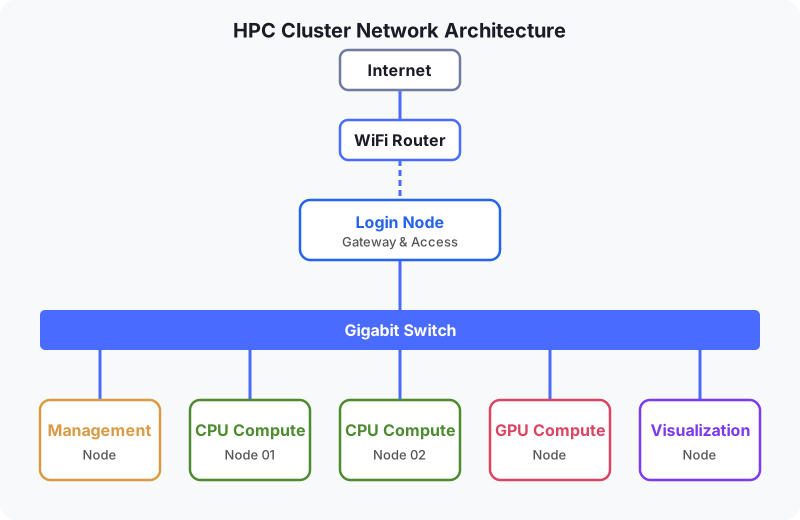
All cluster nodes connect to a Netgear GS308E Gigabit managed switch on a 10.0.0.x subnet. The switch is unmanaged in practice: no VLANs, no trunking, no complex configuration. The internal cluster traffic is physically isolated on this switch.
The login node (carrier) has two network interfaces. Its WiFi connects to the home router for internet access. Its Ethernet connects to the cluster switch. This makes the login node a bridge between the outside world and the internal cluster network.
This is the same architectural pattern used in production HPC environments, where login nodes sit at the boundary between the external network and the high-speed internal fabric. The only difference here is scale and bandwidth: Gigabit Ethernet instead of InfiniBand or Slingshot, and a consumer switch instead of a managed spine-leaf topology.
> 5. AWS Cost Comparison
To put the build cost in perspective, here is what a roughly comparable cloud setup would cost on AWS.
The comparison uses two c6g.2xlarge instances, which match the CPU compute nodes (interceptor-01 and interceptor-02) in core count and memory. This does not include the management node, visualization node, login node, or GPU node. The actual cluster has more capacity than what is represented by two EC2 instances.
| Home Cluster (2 CPU nodes) | AWS EC2 (2x c6g.2xlarge) | |
|---|---|---|
| vCPUs per node | 8 | 8 |
| Memory per node | ~14 GB | 16 GB |
| Architecture | x86 (AMD Ryzen 5 Pro) | ARM (AWS Graviton2) |
| Network | 1 Gbps (managed switch) | Up to 10 Gbps |
| Total one-time cost | $1,264 | N/A |
| Annual cost | Electricity only | $2,300 (3-yr Savings Plan, N. Virginia) |
| Break-even | ~7 months vs. cloud | N/A |
Caveat: This comparison matches node count and memory, not raw performance. The c6g.2xlarge instances use newer ARM (Graviton2) cores and have significantly faster networking. The point is not that the home cluster outperforms EC2. The point is that for learning distributed systems, job scheduling, and cluster administration, building your own hardware pays for itself quickly and gives you hands-on experience that cloud instances cannot replicate.
The AWS estimate was generated using the AWS Pricing Calculator with the following configuration: 2x c6g.2xlarge, US East (N. Virginia), Linux, Compute Savings Plans (3-year, no upfront), 24/7 consistent workload.
> 6. What is Next
In Episode 2, we will open up the Lenovo ThinkCentre M715q and go through the hardware in detail. I will show you how to install the RAM upgrades and fix a critical BIOS setting where the integrated Vega GPU reserves a chunk of system memory by default.
After that, the series will cover:
- Operating system installation and initial configuration
- Slurm installation and multi-node job scheduling
- FreeIPA setup for centralized authentication
- NFS shared storage configuration
- GPU upgrade (RTX 5060 Ti swap and power supply replacement)
- Benchmarking and performance tuning
- Cable management (yes, eventually)
All configuration files and Ansible playbooks will be published on my GitHub as we go.
Happy Computing!