[HPC From Scratch] Episode 4: NFS Storage & FreeIPA: One Drive, One Login
Published:
One drive. One login. Every node sees the same home directory.
Welcome back to HPC From Scratch. In Episode 3, we set up the network, installed Rocky Linux on all six nodes, configured DHCP and NAT, and hardened SSH. The cluster is networked and secured. Now it needs two things before Slurm makes any sense: shared storage and centralized authentication.
Without these two pieces, you are manually copying files to every node and creating the same user account six times. This episode fixes both problems.
(Click the image to watch the tutorial on YouTube)
Table of Contents
- 1. Why Shared Storage Matters
- 2. Ansible Setup
- 3. NFS Server Setup
- 4. NFS Client Setup
- 5. Time Synchronization (Chrony)
- 6. The Problem with Local Users
- 7. FreeIPA Server Installation
- 8. FreeIPA Client Enrollment
- 9. Verification
- 10. What is Next
> 1. Why Shared Storage Matters
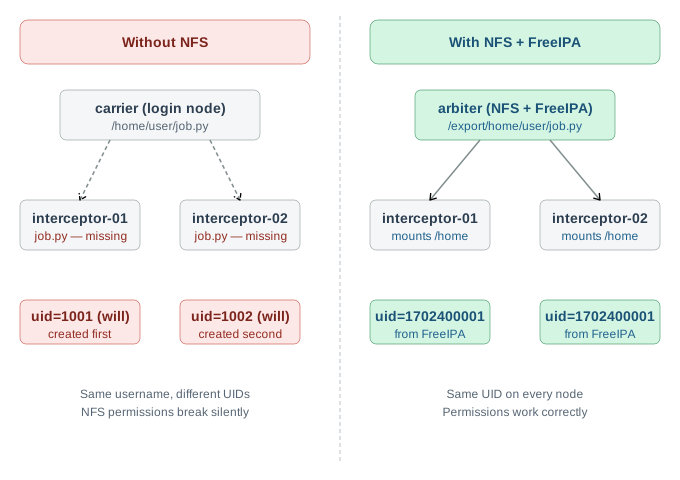
Without NFS, submitting an MPI job across two nodes means your input data has to exist on both nodes. You either copy it manually or write a script to sync it. Neither is sustainable.
With NFS, the Samsung 990 Pro on arbiter (the management node) exports a single /home directory. Every node in the cluster mounts it. Write a script on the login node, run it from any compute node. The file is already there.
This also matters for Slurm. When a job writes output files, they land in /home on the NFS share. You do not need to SSH into compute nodes to retrieve results.
Prerequisites
Before starting this episode:
- All nodes are running Rocky Linux 9 with network configured (Episode 3)
arbiterhas the Samsung 990 Pro NVMe drive installed (Episode 2)- SSH key-based login is working from
arbiterto all other nodes
> 2. Ansible Setup
From this episode onward, we use Ansible to apply configuration across all nodes at once. Without it, every change means SSHing into six machines individually.
Ansible runs from arbiter. We keep it in /opt/ansible rather than a home directory so it stays off the NFS share. Ansible configuration files contain SSH keys and vault passwords that should not be visible to every node in the cluster.
Install Ansible
[wpaik@arbiter ~]$ sudo dnf install ansible-core
[wpaik@arbiter ~]$ sudo mkdir -p /opt/ansible
[wpaik@arbiter ~]$ sudo chown wpaik:wpaik /opt/ansible
[wpaik@arbiter ~]$ cd /opt/ansible
SSH Key
Generate a dedicated key for Ansible and distribute it to all nodes:
[wpaik@arbiter ansible]$ mkdir .ssh
[wpaik@arbiter ansible]$ ssh-keygen -t ed25519 -f .ssh/worker_ed25519 -N ""

[wpaik@arbiter ansible]$ for node in 192.168.50.1 192.168.50.15 192.168.50.32 192.168.50.11 192.168.50.19; do
    ssh-copy-id -i .ssh/worker_ed25519.pub wpaik@$node
  done
Inventory and Config
Create hosts.ini:
[head]
carrier.cluster.local ansible_host=192.168.50.1

[management]
arbiter.cluster.local ansible_host=192.168.50.50 ansible_connection=local

[workers]
interceptor-01.cluster.local ansible_host=192.168.50.15
interceptor-02.cluster.local ansible_host=192.168.50.32

[gpu]
corsair-01.cluster.local ansible_host=192.168.50.11

[visualization]
observer.cluster.local ansible_host=192.168.50.19

[compute:children]
workers
gpu

[all_nodes:children]
head
management
workers
gpu
visualization

[all_nodes:vars]
ansible_user=wpaik
cluster_network=192.168.50.0/24
cluster_domain=cluster.local
cluster_realm=CLUSTER.LOCAL
Note that arbiter uses ansible_connection=local since it is the Ansible controller itself.
Create ansible.cfg:
[defaults]
private_key_file    = /opt/ansible/.ssh/worker_ed25519
inventory           = ./hosts.ini
host_key_checking   = False
log_path            = ./log/ansible.log
vault_password_file = /opt/ansible/.ansible_vault_pw
Verify connectivity:
[wpaik@arbiter ansible]$ ansible all -m ping
carrier.cluster.local | SUCCESS => { "ping": "pong" }
arbiter.cluster.local | SUCCESS => { "ping": "pong" }
interceptor-01.cluster.local | SUCCESS => { "ping": "pong" }
interceptor-02.cluster.local | SUCCESS => { "ping": "pong" }
corsair-01.cluster.local | SUCCESS => { "ping": "pong" }
observer.cluster.local | SUCCESS => { "ping": "pong" }
All six nodes responding. From here on, playbooks handle the repetitive work.
> 3. NFS Server Setup
All commands in this section run on arbiter.
Partition the NVMe Drive with LVM
A single large partition works, but LVM gives us the flexibility to allocate separate volumes for home directories, work storage, shared software, and scratch space. This mirrors how storage is typically organized on a real HPC cluster.
First, verify the NVMe drive:
[wpaik@arbiter ~]$ lsblk
NAME   MAJ:MIN RM   SIZE RO TYPE MOUNTPOINTS
sda      8:0    0 223.6G  0 disk
├─sda1   8:1    0   600M  0 part /boot/efi
├─sda2   8:2    0     1G  0 part /boot
└─sda3   8:3    0   222G  0 part
  ├─rl-root  253:0  0  70G  0 lvm  /
  └─rl-swap  253:1  0 7.7G  0 lvm  [SWAP]
nvme0n1  259:0  0 931.5G  0 disk
The SATA boot drive is sda. The NVMe is nvme0n1. Create a physical volume, volume group, and four logical volumes:
# Install LVM tools
$ sudo dnf install -y lvm2

# Create physical volume and volume group
$ sudo pvcreate /dev/nvme0n1
$ sudo vgcreate vg_nfs /dev/nvme0n1

# Create logical volumes
$ sudo lvcreate -L 167G -n lv_home    vg_nfs
$ sudo lvcreate -L 251G -n lv_work    vg_nfs
$ sudo lvcreate -L  84G -n lv_shared  vg_nfs
$ sudo lvcreate -L 251G -n lv_scratch vg_nfs

# Format as XFS
$ sudo mkfs.xfs /dev/vg_nfs/lv_home
$ sudo mkfs.xfs /dev/vg_nfs/lv_work
$ sudo mkfs.xfs /dev/vg_nfs/lv_shared
$ sudo mkfs.xfs /dev/vg_nfs/lv_scratch
Create mount points and mount:
$ sudo mkdir -p /nfsdata/{home,work,shared,scratch}

$ sudo mount /dev/vg_nfs/lv_home    /nfsdata/home
$ sudo mount /dev/vg_nfs/lv_work    /nfsdata/work
$ sudo mount /dev/vg_nfs/lv_shared  /nfsdata/shared
$ sudo mount /dev/vg_nfs/lv_scratch /nfsdata/scratch
Add to /etc/fstab for persistence:
$ echo '/dev/vg_nfs/lv_home    /nfsdata/home    xfs defaults 0 0' | sudo tee -a /etc/fstab
$ echo '/dev/vg_nfs/lv_work    /nfsdata/work    xfs defaults 0 0' | sudo tee -a /etc/fstab
$ echo '/dev/vg_nfs/lv_shared  /nfsdata/shared  xfs defaults 0 0' | sudo tee -a /etc/fstab
$ echo '/dev/vg_nfs/lv_scratch /nfsdata/scratch xfs defaults 0 0' | sudo tee -a /etc/fstab
Bind mount /nfsdata/home to /home on arbiter itself, so the management node also uses the NFS storage:
$ echo '/nfsdata/home /home none bind 0 0' | sudo tee -a /etc/fstab
$ sudo mount -a
Verify the final layout:
[wpaik@arbiter ~]$ lsblk
NAME                  MAJ:MIN RM   SIZE RO TYPE MOUNTPOINTS
sda                     8:0    0 223.6G  0 disk
├─sda1                  8:1    0   600M  0 part /boot/efi
├─sda2                  8:2    0     1G  0 part /boot
└─sda3                  8:3    0   222G  0 part
  ├─rl-root           253:0    0    70G  0 lvm  /
  ├─rl-swap           253:1    0   7.7G  0 lvm  [SWAP]
  └─rl-home           253:6    0 144.3G  0 lvm
nvme0n1               259:0    0 931.5G  0 disk
├─vg_nfs-lv_home      253:2    0   167G  0 lvm  /home
│                                               /nfsdata/home
├─vg_nfs-lv_work      253:3    0   251G  0 lvm  /nfsdata/work
├─vg_nfs-lv_shared    253:4    0    84G  0 lvm  /nfsdata/shared
└─vg_nfs-lv_scratch   253:5    0   251G  0 lvm  /nfsdata/scratch
The bind mount makes lv_home appear twice: once at /nfsdata/home (the actual mount point) and once at /home (the bind mount that arbiter itself uses). The other three volumes only mount at their /nfsdata paths on arbiter. Client nodes will mount them at /work, /shared, and /scratch via NFS.
Configure the NFS Server
$ sudo dnf install -y nfs-utils
$ sudo systemctl enable --now nfs-server
Configure /etc/exports:
/nfsdata/home    192.168.50.0/24(rw,sync,no_root_squash,no_subtree_check)
/nfsdata/work    192.168.50.0/24(rw,sync,no_root_squash,no_subtree_check)
/nfsdata/shared  192.168.50.0/24(rw,sync,no_root_squash,no_subtree_check)
/nfsdata/scratch 192.168.50.0/24(rw,sync,no_root_squash,no_subtree_check)
A quick note on the options: rw allows read and write, sync commits writes to disk before responding (safer), no_subtree_check avoids a performance penalty when exporting subdirectories, and no_root_squash lets root on client nodes act as root on the share, which Slurm will need later.
Note on
no_root_squash: This is appropriate for a trusted internal cluster network. Our cluster is physically isolated on the192.168.50.xsubnet. On a shared cluster with untrusted users, useroot_squashinstead.
Apply and open the firewall:
$ sudo exportfs -ra
$ sudo firewall-cmd --permanent --add-service={nfs,rpc-bind,mountd}
$ sudo firewall-cmd --reload

# Verify
$ sudo showmount -e localhost
Export list for localhost:
/nfsdata/scratch 192.168.50.0/24
/nfsdata/shared  192.168.50.0/24
/nfsdata/work    192.168.50.0/24
/nfsdata/home    192.168.50.0/24
> 4. NFS Client Setup
Rather than SSHing into each node manually, use Ansible. Run from /opt/ansible on arbiter:
[wpaik@arbiter ansible]$ ansible-playbook playbooks/nfs_setup.yaml -K
What the playbook does on each client node: installs nfs-utils, sets the SELinux boolean for NFS home directories, creates mount points for /work, /shared, and /scratch, adds all four NFS mounts to /etc/fstab with _netdev, and mounts them.
The _netdev option tells the system to wait for network availability before mounting. Without it, a node that boots faster than arbiter will fail to mount and potentially hang at boot.
The playbook also enables XFS quota on arbiter and reboots it to apply. This is covered in the full playbook in the GitHub repository.
Verify from carrier after rebooting:
[wpaik@carrier ~]$ df -h
Filesystem                              Size  Used Avail Use% Mounted on
/dev/mapper/rl-root                      70G  5.4G   65G   8% /
arbiter.cluster.local:/nfsdata/home     167G  8.2G  159G   5% /home
arbiter.cluster.local:/nfsdata/work     251G  4.9G  247G   2% /work
arbiter.cluster.local:/nfsdata/shared    84G   23G   62G  27% /shared
arbiter.cluster.local:/nfsdata/scratch  251G   22G  230G   9% /scratch
Note: The playbook reboots worker and GPU nodes automatically. carrier (the head node) requires a manual reboot after the playbook completes since it is the SSH entry point into the cluster. After rebooting carrier, verify mounts with
df -h.
Before moving on to FreeIPA, run the Chrony playbook to synchronize time across all nodes:
[wpaik@arbiter ansible]$ ansible-playbook playbooks/chrony_setup.yaml -K
This sets up carrier as the NTP server for the cluster and configures all other nodes to sync from it. FreeIPA uses Kerberos for authentication, and Kerberos will reject tickets if the time difference between nodes exceeds 5 minutes. Running Chrony before FreeIPA avoids that problem.
Test that the share works:
# Create a test file from interceptor-01
[wpaik@interceptor-01 ~]$ touch /home/nfs_test.txt

# Verify it appears on interceptor-02
[wpaik@interceptor-02 ~]$ ls /home/nfs_test.txt
/home/nfs_test.txt
One file, visible everywhere.
> 5. Time Synchronization (Chrony)
Before setting up FreeIPA, all nodes need to be synchronized to the same time source. FreeIPA uses Kerberos for authentication, and Kerberos will reject tickets if the clock difference between nodes exceeds 5 minutes. On a fresh cluster this is usually fine, but it is better to set it up explicitly.
carrier acts as the NTP server for the cluster. It syncs from external sources (time.cloudflare.com, pool.ntp.org) and serves time to all internal nodes. The other nodes sync from carrier.
[wpaik@arbiter ansible]$ ansible-playbook playbooks/chrony_setup.yaml -K
Verify sync status on any node after the playbook completes:
$ chronyc tracking
Reference ID    : C0A83201 (carrier.cluster.local)
Stratum         : 3
System time     : 0.000123456 seconds fast of NTP time
Last offset     : +0.000045678 seconds
RMS offset      : 0.000089012 seconds
Reference ID pointing to carrier.cluster.local confirms the node is syncing from carrier.
> 6. The Problem with Local Users
NFS solves the file sharing problem. But it creates a new one.
NFS uses UID (User ID) and GID (Group ID) numbers to handle file permissions, not usernames. When user will on interceptor-01 has UID 1001, and user will on interceptor-02 has UID 1002 (because you created the accounts in a different order), they see different permissions on the same NFS files.
# On interceptor-01
$ id will
uid=1001(will) gid=1001(will)

# On interceptor-02
$ id will
uid=1002(will) gid=1002(will)

# The NFS file owned by will on interceptor-01 (uid=1001)
# looks like it belongs to a different user on interceptor-02
You can work around this by manually synchronizing UIDs across every node. On a six-node cluster with a few users, that is tedious but manageable. On a real cluster with hundreds of users, it is not viable.
The proper solution is centralized authentication: one place where user accounts are defined, and every node pulls from that source. This is what FreeIPA provides.
> 7. FreeIPA Server Installation
FreeIPA bundles several services into one package: LDAP (directory), Kerberos (authentication), DNS, and a certificate authority. The installation is opinionated and sets everything up together.
All commands in this section run on arbiter.
Prerequisites
FreeIPA requires a fully qualified domain name (FQDN). Verify it resolves correctly before proceeding:
[wpaik@arbiter ~]$ hostname -f
arbiter.cluster.local

[wpaik@arbiter ~]$ ping -c 1 arbiter.cluster.local
PING arbiter.cluster.local (192.168.50.50) 56(84) bytes of data.
Also verify at least 1.5GB of free RAM. The installer is memory-hungry:
$ free -h
              total        used        free
Mem:           15Gi        800Mi       14Gi
Install and Run the Server Setup
$ sudo dnf install -y freeipa-server freeipa-server-dns

$ sudo ipa-server-install \
  --domain=cluster.local \
  --realm=CLUSTER.LOCAL \
  --ds-password=<your_directory_manager_password> \
  --admin-password=<your_admin_password> \
  --hostname=arbiter.cluster.local \
  --ip-address=192.168.50.50 \
  --no-ntp \
  --unattended
A few things to note: --realm must be uppercase, --no-ntp skips NTP configuration since we manage time sync with Chrony separately, and --unattended skips interactive prompts. The installer takes 5-10 minutes and configures LDAP, Kerberos, and the CA.
After completion, open the required firewall ports:
$ sudo firewall-cmd --permanent --add-service={freeipa-ldap,freeipa-ldaps,kerberos,dns,http,https}
$ sudo firewall-cmd --reload
Verify the Installation
$ kinit admin
Password for [email protected]:

$ klist
Ticket cache: KCM:0
Default principal: [email protected]

Valid starting     Expires            Service principal
04/27/26 09:00:00  04/28/26 09:00:00  krbtgt/[email protected]

$ ipa user-find
---------------
0 users matched
---------------
No users yet. We will add them after enrollment.
Set the default shell to bash (the FreeIPA default is /bin/sh):
$ ipa config-mod --defaultshell=/bin/bash
> 8. FreeIPA Client Enrollment
Before enrolling, add arbiter to /etc/hosts on every node. The enrollment process needs to resolve arbiter.cluster.local, and at this point SSSD is not yet configured. Doing this beforehand ensures enrollment does not fail on DNS resolution.
The Ansible playbook handles this automatically:
[wpaik@arbiter ansible]$ ansible-playbook playbooks/freeipa_setup.yaml -K
If you prefer to do it manually on each node:
# Add arbiter to /etc/hosts
$ echo "192.168.50.50 arbiter.cluster.local arbiter" | sudo tee -a /etc/hosts

# Install and enroll
$ sudo dnf install -y freeipa-client oddjob-mkhomedir

$ sudo ipa-client-install \
  --server=arbiter.cluster.local \
  --domain=cluster.local \
  --realm=CLUSTER.LOCAL \
  --principal=admin \
  --password=<your_admin_password> \
  --mkhomedir \
  --no-ntp \
  --unattended
The --mkhomedir flag tells the system to create a home directory on first login. Since /home is NFS-mounted from arbiter, the directory lands on the NFS share and is immediately visible from all nodes.
After enrollment, confirm each node can reach the IPA server:
[wpaik@interceptor-01 ~]$ ipa user-find
---------------
0 users matched
---------------
If this returns a response (even 0 users), the client is enrolled and talking to the server.
Create a Test User
Back on arbiter:
[wpaik@arbiter ~]$ kinit admin

$ ipa user-add testuser \
  --first=Test \
  --last=User \
  --password

$ ipa user-find testuser
--------------
1 user matched
--------------
  User login: testuser
  First name: Test
  Last name: User
  Home directory: /home/testuser
  Login shell: /bin/bash
  UID: 99100XXXX
  GID: 99100XXXX
Notice the UID range. FreeIPA assigns UIDs starting well above the range used by local system accounts, avoiding any collision. The exact starting range depends on how FreeIPA was configured during installation, but whatever it assigns will be identical on every node in the cluster.
For ongoing user management, the scripts/user_creation.sh script in the GitHub repository handles the full process: FreeIPA account creation, home directory setup with correct NFS ownership, XFS quota, and Slurm accounting entry.
Accessing the FreeIPA Web UI
The FreeIPA web interface is reachable from outside the cluster using sshuttle, a VPN-over-SSH tool that routes traffic through the login node.
On your local machine:
# Install sshuttle
$ sudo dnf install sshuttle    # Fedora/RHEL
# or: pip install sshuttle

# Add arbiter to your local /etc/hosts
$ echo "192.168.50.50 arbiter arbiter.cluster.local" | sudo tee -a /etc/hosts

# Open the tunnel (keep this terminal open)
$ sshuttle -r [email protected] 192.168.50.0/24 --dns
Then open a browser and go to https://arbiter.cluster.local/ipa/ui/. Accept the self-signed certificate warning and log in with the admin credentials.
> 9. Verification
SSH as the new user from the login node to a compute node:
[wpaik@carrier ~]$ ssh testuser@interceptor-01
Password:
Creating home directory for testuser.

[testuser@interceptor-01 ~]$ pwd
/home/testuser

[testuser@interceptor-01 ~]$ id
uid=99100XXXX(testuser) gid=99100XXXX(testuser) groups=99100XXXX(testuser)
Now check the same user from a different node:
[testuser@interceptor-02 ~]$ id
uid=99100XXXX(testuser) gid=99100XXXX(testuser) groups=99100XXXX(testuser)
Same UID on both nodes. Files written on interceptor-01 have correct permissions on interceptor-02. The home directory is the same NFS path regardless of which node you land on.
One account. Every node. One home directory.
Troubleshooting Common Issues
Enrollment fails with DNS error:
The playbook adds arbiter.cluster.local to /etc/hosts before enrollment. If it still fails, verify the entry exists on the failing node:
$ getent hosts arbiter.cluster.local
192.168.50.50   arbiter.cluster.local arbiter
If missing, add it manually:
$ echo "192.168.50.50 arbiter.cluster.local arbiter" | sudo tee -a /etc/hosts
NFS mount fails after FreeIPA enrollment:
FreeIPA updates /etc/nsswitch.conf. Confirm files appears before sss for passwd and group:
$ grep -E "^(passwd|group)" /etc/nsswitch.conf
passwd:     sss files systemd
group:      sss files systemd
If NFS mounts hang after enrollment:
$ sudo setsebool -P use_nfs_home_dirs 1
Home directory not created on first login:
$ sudo systemctl enable --now oddjobd
Node freezes on boot after NFS setup:
A stale resume=UUID in GRUB can cause boot hangs. From the GRUB menu, press e, remove the resume=UUID=... argument, then Ctrl+X to boot. Once up:
$ grubby --update-kernel=ALL --remove-args="resume=UUID=<UUID>"
> 10. What is Next
The cluster now has shared storage and centralized authentication. Every node shares the same home directory and every user has a consistent identity across all nodes.
Next episode we install Slurm, the job scheduler. With NFS and FreeIPA already in place, Slurm has everything it needs to schedule jobs across nodes and write output files back to a shared location.
All configuration files and Ansible playbooks from this episode are in the GitHub repository.
Happy Computing!