


The scheduler is running. Now teach it who gets what.
In Episode 5, we installed Slurm, wired up slurmdbd to MariaDB, and submitted the first jobs. The cluster works.
But right now it is a free-for-all. There are no time limits on jobs. One user can flood the queue with a hundred jobs and starve everyone else. A user who has been running non-stop for a week looks identical to someone submitting their very first job. For a single-user home cluster this is fine. For anything shared, it falls apart fast.
This episode builds the accounting layer from scratch: account hierarchy in sacctmgr, QOS policies, and fair share scheduling. We will also add time limits to the partitions, which currently accept jobs with no wall time limit at all.
*(Click the image to watch the tutorial on YouTube)*Prerequisites: This episode assumes you have completed Episode 5. You need a working Slurm installation with slurmdbd connected to MariaDB, and at least one compute node reporting as idle. All commands below assume the cluster is healthy.
1. How Slurm Accounting Is Organized #
Slurm accounting has three levels.
Cluster sits at the top. This is what we registered in Episode 5 with sacctmgr -i add cluster cluster.
Accounts are groupings below the cluster. Think departments, research groups, or PI labs. Accounts hold the fair share budget. If research holds 80% of the cluster’s share allocation and demo holds 20%, that ratio controls how Slurm prioritizes their jobs when the queue is contested.
Users belong to one or more accounts. When a user submits a job, Slurm charges usage against their account, which affects that account’s fair share standing.
Our current state from Episode 5:
cluster
└── root
    ├── root  (user)
    └── wpaik
Everything is under the root account with no structure. We will add two sub-accounts and move users into the right place:
cluster
└── root
    ├── research  (share=80)
    │   ├── wpaik
    │   └── testuser1
    └── demo  (share=20)
        └── testuser2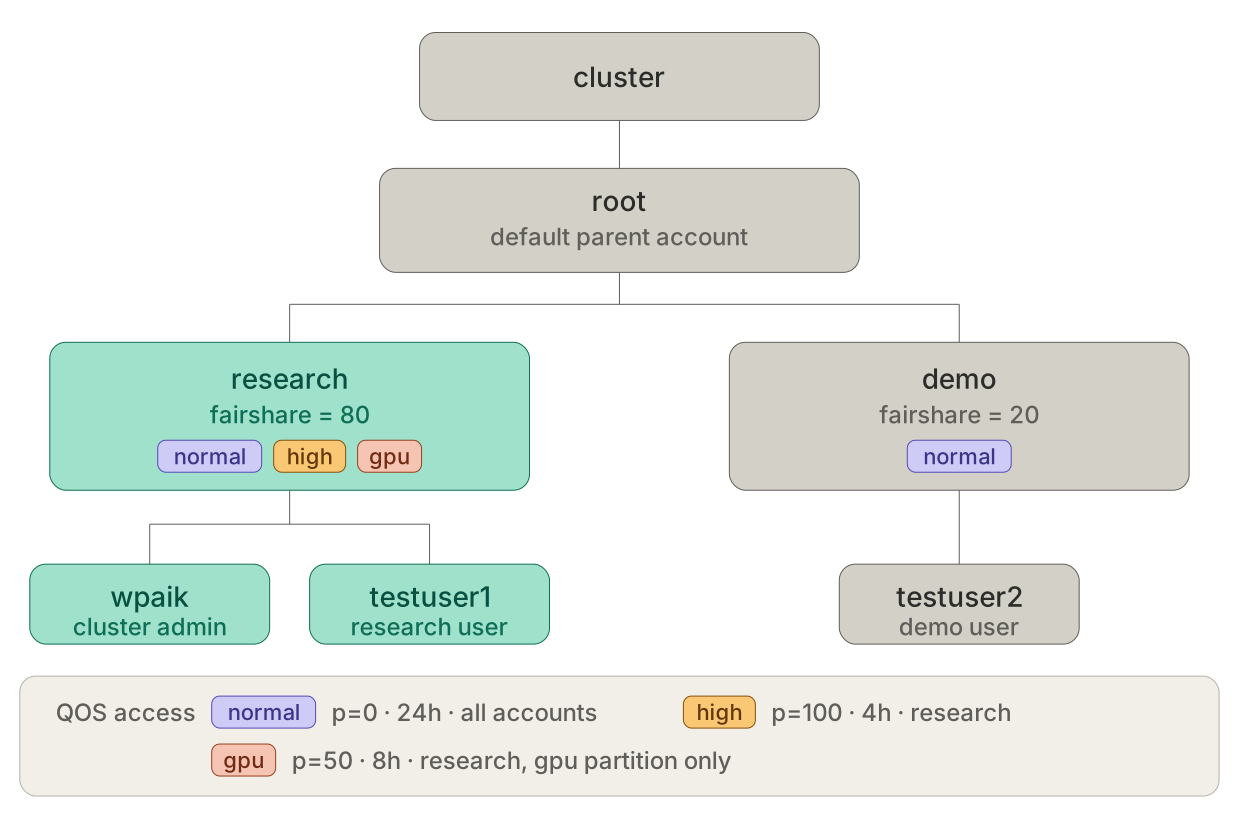
2. Building the Account Tree #
Create the two sub-accounts under root. The parent=root flag places them in the hierarchy below the existing root account.
[wpaik@arbiter ~]$ sudo sacctmgr -i add account research parent=root \
    Description="Research Group" Organization="Cluster" fairshare=80

[wpaik@arbiter ~]$ sudo sacctmgr -i add account demo parent=root \
    Description="Demo Group" Organization="Cluster" fairshare=20
Note:
sacctmgrwrite operations (add, modify, delete) require admin access. Since wpaik hasAdminLevel=Nonein Slurm, usesudofor any command that modifies the database. Read-only commands likesacctmgr showdo not need sudo.
Before adding users to Slurm accounting, make sure testuser1 and testuser2 exist as actual system users. Since this cluster uses FreeIPA, add them there first. For demo purposes, minimal accounts with no home directory are enough. Slurm will accept users in sacctmgr that do not have home directories, but jobs will only run if the OS can resolve the username.
[wpaik@arbiter ~]$ ipa user-add testuser1 --first=Test --last=User1
[wpaik@arbiter ~]$ ipa user-add testuser2 --first=Test --last=User2
Now add users to the accounting database:
# wpaik already has an association under root from Episode 5.
# Adding to research creates a second association and sets it as default.
[wpaik@arbiter ~]$ sudo sacctmgr -i add user wpaik account=research defaultaccount=research

[wpaik@arbiter ~]$ sudo sacctmgr -i add user testuser1 account=research defaultaccount=research
[wpaik@arbiter ~]$ sudo sacctmgr -i add user testuser2 account=demo defaultaccount=demo
A user can belong to multiple accounts simultaneously. wpaik now has associations under both root and research. Their default account (what gets charged when no --account flag is specified) is now research.
Note on admin accounts: In this series, wpaik handles all cluster administration, including sacctmgr commands, slurm.conf changes, and sudo tasks. That is a common simplification for a home lab. In production HPC environments, sysadmin work typically runs under a dedicated service account, keeping administrative activity out of the fair share calculation. What matters here is that wpaik has
AdminLevel=Nonein sacctmgr, so fair share applies to it exactly like any regular user. Linux sudoer privilege is invisible to the scheduler.
Verify the tree:
[wpaik@arbiter ~]$ sacctmgr show associations format=cluster,account,user,share,qos,defaultqos
   Cluster    Account       User     Share                QOS DefQOS
---------- ---------- ---------- --------- -------------------- ------
   cluster       root                    1
   cluster       root       root         1
   cluster   research                   80       normal,high,gpu normal
   cluster   research      wpaik         1       normal,high,gpu normal
   cluster   research  testuser1         1       normal,high,gpu normal
   cluster       demo                   20                normal normal
   cluster       demo  testuser2         1                normal normal
Note on wpaik appearing twice in sshare: Because wpaik has associations in both
root(from Episode 5) andresearch(new),sshare -lwill show wpaik under both accounts. Therootentry carries the usage history from Episode 5 jobs. Theresearchentry starts at zero. This is expected and normal. Jobs submitted going forward will be charged to theresearchaccount by default.
3. QOS: Giving Jobs Different Weights #
Quality of Service (QOS) lets you attach rules to jobs: how long they can run, how many resources they can request, and how much priority they carry in the queue. Without QOS, every job competes on the same terms.
We will create three:
| QOS | Priority | MaxWall | Purpose |
|---|---|---|---|
normal |
0 | 24 hours | Default for all jobs |
high |
100 | 4 hours | Short, urgent jobs that jump the queue |
gpu |
50 | 8 hours | GPU partition jobs |
Create and configure them:
[wpaik@arbiter ~]$ sudo sacctmgr -i add qos normal
[wpaik@arbiter ~]$ sudo sacctmgr -i modify qos normal set Priority=0 MaxWallDurationPerJob=1-00:00:00

[wpaik@arbiter ~]$ sudo sacctmgr -i add qos high
[wpaik@arbiter ~]$ sudo sacctmgr -i modify qos high set Priority=100 MaxWallDurationPerJob=04:00:00

[wpaik@arbiter ~]$ sudo sacctmgr -i add qos gpu
[wpaik@arbiter ~]$ sudo sacctmgr -i modify qos gpu set Priority=50 MaxWallDurationPerJob=08:00:00
Assign valid QOS to each account. The research group gets access to all three. demo gets normal only.
[wpaik@arbiter ~]$ sudo sacctmgr -i modify account name=research set qos=normal,high,gpu defaultqos=normal
[wpaik@arbiter ~]$ sudo sacctmgr -i modify account name=demo set qos=normal defaultqos=normal
To use a non-default QOS in a job script:
#SBATCH --qos=highIf a user from demo tries to submit with --qos=high, Slurm rejects it at submission before the job ever enters the queue:
sbatch: error: Batch job submission failed: Invalid qos specificationNote: The
highQOS carries a hard 4-hour wall limit. A user cannot request--qos=hightogether with--time=08:00:00. The priority boost comes with the cost of a shorter runtime cap. This is intentional.
4. Fair Share: Making Heavy Usage Cost Something #
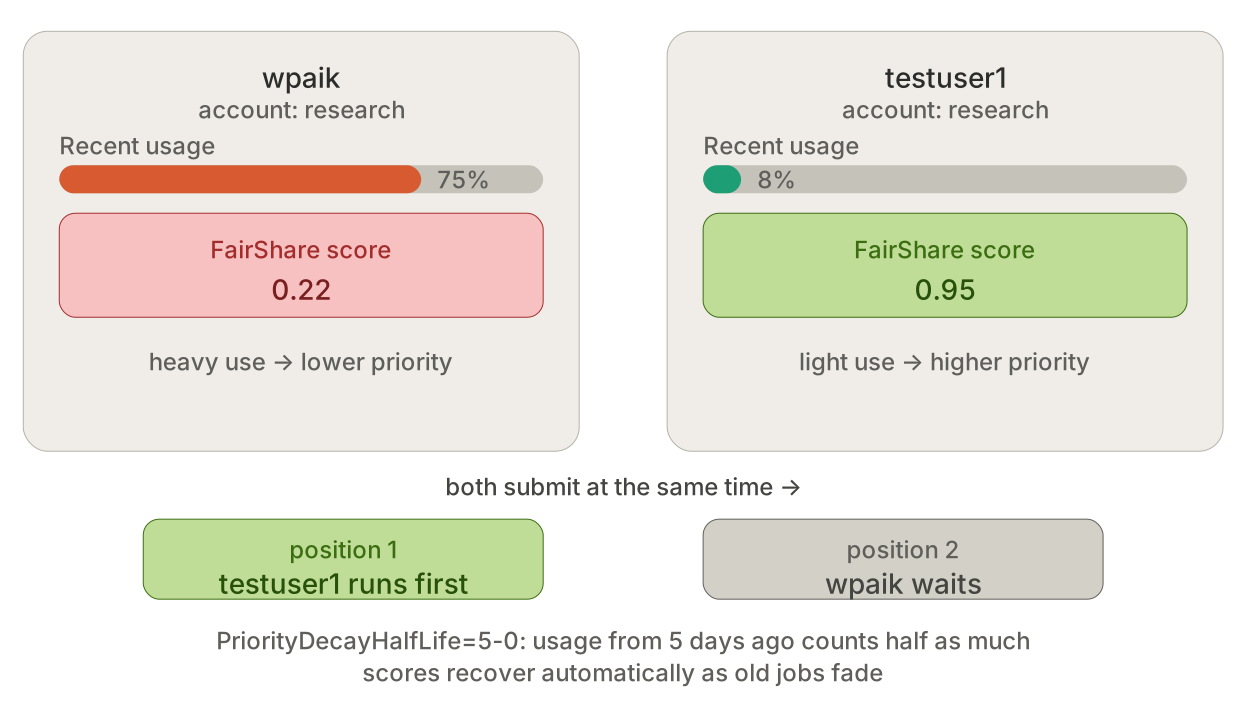
Without fair share, Slurm schedules by submission order (FIFO). The first job in queue runs first, regardless of whether that user submitted one job or a hundred in the past week.
Fair share changes this by tracking historical usage and adjusting priority. Users who have consumed more than their entitlement get lower priority. Users who have consumed less get higher priority. The effect is self-correcting: heavy usage today means lower priority tomorrow.
Enabling Fair Share #
Add these lines to /etc/slurm/slurm.conf on arbiter:
[wpaik@arbiter ~]$ sudo vim /etc/slurm/slurm.conf# Priority / Fair Share
PriorityType=priority/multifactor
PriorityWeightFairShare=100000
PriorityWeightAge=1000
PriorityDecayHalfLife=5-0
PriorityMaxAge=7-0
AccountingStorageEnforce=associations,qosPriorityType=priority/multifactor switches Slurm from FIFO to a weighted multi-factor priority model. This line activates everything else in this section.
PriorityWeightFairShare=100000 makes fair share the dominant factor in priority calculation. Other factors like job age still count, but usage history drives most of the scheduling decision.
PriorityWeightAge=1000 adds a small, steadily increasing bonus to jobs that have been waiting longer. This prevents starvation: even a heavy user with a low fair share score will eventually see their job run as the age bonus accumulates.
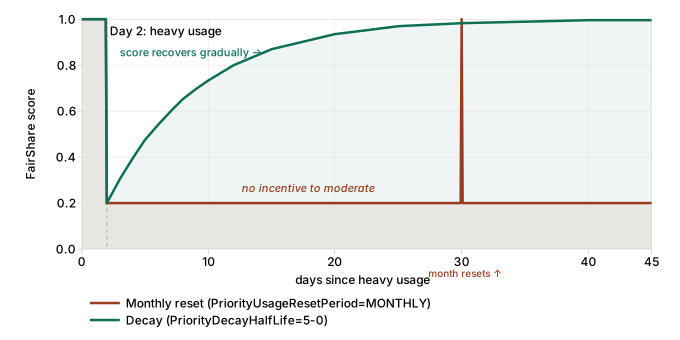
PriorityDecayHalfLife=5-0 controls how long the scheduler remembers past usage. Every 5 days, accumulated usage counts as half. A CPU-hour consumed today carries twice the weight of the same CPU-hour from 5 days ago.
PriorityMaxAge=7-0 caps the age bonus at 7 days. A job stuck in queue for two weeks does not keep accumulating priority indefinitely.
AccountingStorageEnforce=associations,qos makes Slurm actually enforce the accounting rules at submission time. associations rejects jobs from users not in the accounting database. qos rejects jobs that request a QOS the user’s account does not have access to. Without this line, sacctmgr QOS assignments are recorded in the database but never checked. A user in the demo account could still submit with --qos=high and it would run.
Decay vs. Reset #
There are two ways to handle historical usage:
| Approach | Parameter | Behavior |
|---|---|---|
| Gradual decay | PriorityDecayHalfLife=5-0 |
Exponential fade, old usage gradually loses weight |
| Hard reset | PriorityUsageResetPeriod=MONTHLY |
All usage zeroes out on a fixed calendar interval |
Hard reset is conceptually simple: everyone starts clean on the 1st of each month. But it creates a cliff. Usage from the 2nd of the month carries full weight until the reset, then drops to zero overnight. A user who over-consumed in the first week has no incentive to back off for the rest of the month.
Decay avoids the cliff. With a 5-day half-life, usage from last week counts as roughly one-quarter of today’s. There is no sudden reset moment. Priority adjusts continuously. The 5-day half-life is a reasonable starting point: short enough that a burst job does not penalize you for weeks, long enough that the scheduler actually remembers it. Production HPC sites typically land in the 1-7 day range depending on how quickly they want heavy users to recover their standing.
How It Works in Practice #
With research at share=80 and demo at share=20:
- If wpaik has been running jobs for three days straight, their FairShare score drops well below 1.0.
- testuser2 in
demohas not run anything. Their FairShare score stays at 1.0. - If both submit jobs at the same moment, testuser2’s job may run first despite their account having the smaller share allocation, because testuser2 has consumed nothing.
This is intentional. Fair share is about actual usage relative to entitlement, not raw entitlement. research having share=80 means they get 80% of the cluster when everyone competes simultaneously. It does not mean their jobs always run first.
5. Partition Limits #
Both partitions currently have MaxTime=UNLIMITED and no DefaultTime. A job submitted without --time gets unlimited wall time, which means it can block resources indefinitely if it gets stuck.
Update the partition definitions in slurm.conf on arbiter. Replace the existing PartitionName= lines with:
PartitionName=cpu Nodes=interceptor-[01-02] Default=YES MaxTime=1-00:00:00 DefaultTime=01:00:00 State=UP
PartitionName=gpu Nodes=corsair-01 Default=NO MaxTime=08:00:00 DefaultTime=01:00:00 AllowQos=normal,gpu State=UP
DefaultTime=01:00:00 assigns a 1-hour limit to any job submitted without --time. This is the most important of the two parameters. Without a default, forgetting --time silently requests unlimited runtime.
MaxTime=1-00:00:00 caps all CPU jobs at 24 hours. Anything legitimately longer should be checkpointing at the 24-hour mark anyway.
AllowQos=normal,gpu on the GPU partition prevents high QOS jobs from landing on the GPU. The priority shortcut is for short CPU work, not for jumping the GPU queue.
6. Applying the Changes #
The sacctmgr changes (accounts, users, QOS assignments) are already live in the database. No restart required.
The slurm.conf changes (priority settings, partition limits) need to be distributed to all nodes and slurmctld needs to restart.
# Distribute updated slurm.conf to all nodes
[wpaik@arbiter ~]$ ansible all_nodes -b -m copy \
    -a "src=/etc/slurm/slurm.conf dest=/etc/slurm/slurm.conf owner=slurm group=slurm mode=0644"

# Restart slurmctld on arbiter
[wpaik@arbiter ~]$ sudo systemctl restart slurmctld

# Tell all slurmd daemons to re-read their config and recompute the hash
[wpaik@arbiter ~]$ sudo scontrol reconfigure

# Verify
[wpaik@arbiter ~]$ sudo systemctl status slurmctld
[wpaik@arbiter ~]$ tail -n 20 /var/log/slurm/slurmctld.log
The scontrol reconfigure step is important. After distributing slurm.conf and restarting slurmctld, the controller computes a new config hash from the updated file. Without scontrol reconfigure, the slurmd daemons on compute nodes are still holding the old hash, and Slurm will log config mismatch warnings. scontrol reconfigure sends a signal to all slurmd daemons to re-read their copy of slurm.conf and resync.
7. Verification #
Account and QOS structure #
[wpaik@arbiter ~]$ sacctmgr show associations format=cluster,account,user,share,qos,defaultqos
[wpaik@arbiter ~]$ sacctmgr show qos format=name,priority,maxwall,flags
Fair share tree #
[wpaik@carrier ~]$ sshare -l
             Account       User  RawShares  NormShares  RawUsage  EffectvUsage  FairShare
-------------------- ---------- ---------- ----------- --------- ------------- ----------
root                               1          0.000000         0      0.000000   1.000000
 root                    wpaik    1          0.009804         0      0.000000   1.000000
 research                         80         0.784314         0      0.000000        inf
  research              wpaik     1          0.500000         0      0.000000   1.000000
  research           testuser1    1          0.500000         0      0.000000   1.000000
 demo                             20         0.196078         0      0.000000        inf
  demo               testuser2    1          1.000000         0      0.000000   1.000000
A few things to notice in the output. wpaik appears under both root and research because they have associations in both accounts. This is expected. The inf values for the research and demo account rows mean those accounts have zero usage so far and Slurm cannot compute a normalized ratio. Once jobs run under those accounts, inf is replaced by a real number. Submit a few jobs as wpaik and re-run sshare to watch the scores change.
Job priority breakdown #
[wpaik@carrier ~]$ sprio -lThis shows each queued job’s priority broken down by factor: FairShare contribution, Age contribution, QOS contribution. Reach for this when you want to understand why one job is ahead of another.
Job history #
[wpaik@carrier ~]$ sacct -u wpaik --format=JobID,JobName,Partition,Account,AllocCPUS,State,ElapsedPartition limits #
[wpaik@carrier ~]$ scontrol show partition cpu
[wpaik@carrier ~]$ scontrol show partition gpu
The GPU partition should show:
PartitionName=gpu
   AllowGroups=ALL AllowAccounts=ALL AllowQos=normal,gpu
   DefaultTime=01:00:00 MaxTime=08:00:00
   Nodes=corsair-01
   ...
Key fields to check: AllowQos=normal,gpu (not ALL), MaxTime=08:00:00, DefaultTime=01:00:00. If AllowQos=ALL or MaxTime=UNLIMITED is still showing, see the troubleshooting section below.
8. Troubleshooting #
slurm.conf hash mismatch warnings in slurmctld.log
After restarting slurmctld, you may see errors like:
error: Node interceptor-01 appears to have a different slurm.conf than the slurmctld.This happens even when the file content is identical on all nodes. The cause: slurmctld restarted with the new config and computed a new hash, but the slurmd daemons on compute nodes are still holding the hash from the old file. The files match but the hashes in memory do not.
[wpaik@arbiter ~]$ sudo scontrol reconfigureThis signals all slurmd daemons to re-read their slurm.conf and recompute the hash. The warnings should stop appearing in subsequent log entries.
scontrol show partition gpu still shows AllowQos=ALL after reconfigure
First confirm the PartitionName=gpu line in slurm.conf was actually updated on arbiter:
[wpaik@arbiter ~]$ grep "PartitionName=gpu" /etc/slurm/slurm.confThe line should contain AllowQos=normal,gpu. If it does, verify the file was distributed to all nodes:
[wpaik@arbiter ~]$ ansible all_nodes -b -m shell \
    -a "grep 'PartitionName=gpu' /etc/slurm/slurm.conf"
If any node has the old version, re-run the ansible copy task. Then restart and reconfigure:
[wpaik@arbiter ~]$ sudo systemctl restart slurmctld
[wpaik@arbiter ~]$ sudo scontrol reconfigure
[wpaik@carrier ~]$ scontrol show partition gpu | grep AllowQos
slurmctld fails to start after adding PriorityType
Check the controller log first:
[wpaik@arbiter ~]$ tail -n 50 /var/log/slurm/slurmctld.logThe most common cause is slurmdbd being unreachable when slurmctld starts. PriorityType=priority/multifactor requires the accounting database to be available at startup.
[wpaik@arbiter ~]$ sudo systemctl status slurmdbd
[wpaik@arbiter ~]$ sudo systemctl restart slurmdbd
[wpaik@arbiter ~]$ sudo systemctl restart slurmctld
Always start slurmdbd before slurmctld.
sacctmgr -i add account returns an error saying the account already exists
The setup script is not idempotent. If you ran part of it before, some accounts may already be in the database.
[wpaik@arbiter ~]$ sacctmgr show accountIf the account already exists, skip the add and use modify instead. If the account exists but with wrong fairshare values:
[wpaik@arbiter ~]$ sudo sacctmgr -i modify account name=research set fairshare=80sshare shows all zeros or no FairShare data
This means PriorityType=priority/multifactor is not active yet. Either the slurm.conf change was not applied or slurmctld was not restarted after the change.
# Confirm the setting is live
[wpaik@arbiter ~]$ scontrol show config | grep PriorityType
If it still shows basic, restart slurmctld and check again.
Job rejected: “Invalid qos specification”
The user’s account does not have that QOS in its allowed list.
[wpaik@arbiter ~]$ sacctmgr show associations format=account,user,qos where user=testuser2If the QOS is missing, add it:
[wpaik@arbiter ~]$ sudo sacctmgr -i modify account name=demo set qos=normal,high9. What is Next #
The cluster now has a proper multi-user accounting structure. Jobs run under accounts with defined share weights, users who consume more yield priority over time, and partitions have time limits that protect other users from runaway jobs.
Next episode: Lmod. We will install the Lmod module system and set up real environment modules for software installed on the cluster.
All configuration files and sacctmgr setup scripts from this episode are in the GitHub repository.
Happy Computing!